Early access · Free to try, with AI usage limits · Web + Android
● ● ●One video. A clear visual plan.Real app
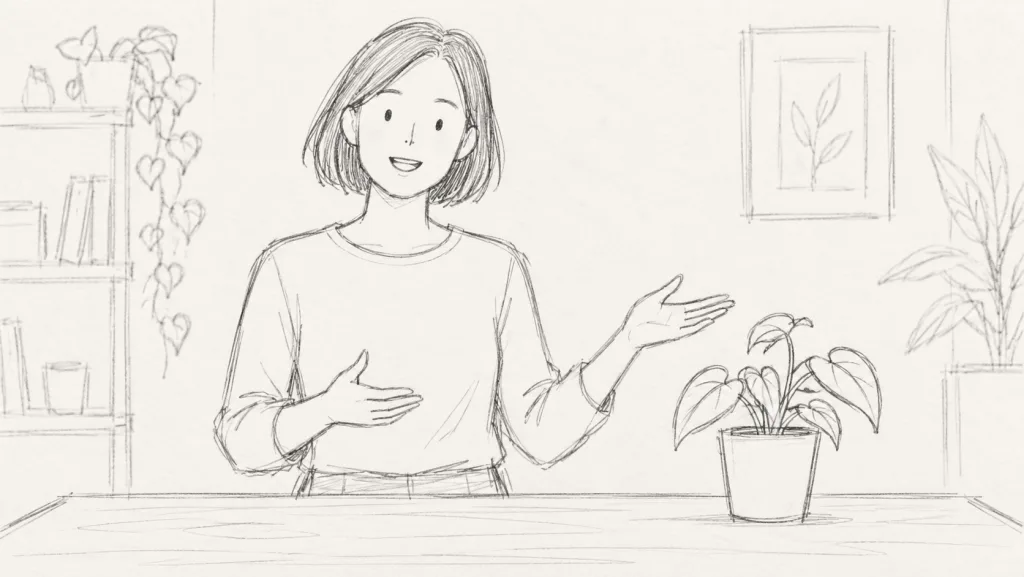
A fictional example project in the real interface. Illustrative AI sketches; results vary.
A plan you can actually film
Pictures beside your instructions
Footage organized for the edit
Less juggling. More creating.
One video, from the first idea to organized footage.
Keep your story, shots, takes and camera files connected.
01 / PLAN
Get the idea out of your head.
Describe your video and review an AI-generated plan, build it yourself, or bring a plan from another AI. Shape the script and shots around what you can really film.
Read your script as one connected video
Refine the plan with the AI Project Helper
Review suggested changes before applying them
Your spoken thread, in editing order.
02 / VISUALIZE
See the shots before you shoot.
Turn visual briefs into simple storyboard sketches, or upload your own images. Review the sequence, adjust a brief, and regenerate only the frames you want to change.
Shared character and sketch-style settings
Extra footage stays part of the plan
Export selected boards as PDF or ZIP
Simple visual references for composition. Your filming decisions stay yours.
03 / FILM
Open a shot. Know what’s next.
See the storyboard image with the full “What to film” instructions directly underneath. Your script and takes follow, so the useful details are there when you need them.
A filming order separate from your editing order
A shot-script teleprompter for spoken moments
Take notes and preferred takes without losing context
The picture and the practical instructions. Side by side with your work.
04 / ORGANIZE
Find the shot, not a mystery filename.
Bring your camera files back to the plan. The Local Media Organizer matches recordings to shots and takes, then gives them descriptive names inside Project and Video folders.
Match recorded QR slates automatically, or assign takes yourself
Name files by scene, shot and take, with preferred takes marked
Review matches and preview paths before confirming; Undo is available
Use a local folder in desktop Chrome or Edge, or selected Gallery videos on Android. Your recorded media stays on your device.
▤From camera files to a clear structure
CAMERA FILES
IMG_0081.MP4
IMG_0082.MP4
↓Match → Review → Preview → Organize
ORGANIZED FOOTAGE
PlantRoutine/
PlantRoutine/
01_Introduction__02_CameraSetup__T01_PREF.MP4
02_Demonstration__02_CareRoutine__T02.MP4
solo_director_manifest.csv
_PREF makes your preferred take easy to spot.
Example file layout. Names come from your plan and take metadata; review the actual paths before organizing.
Take a closer look
A small video. A useful plan.
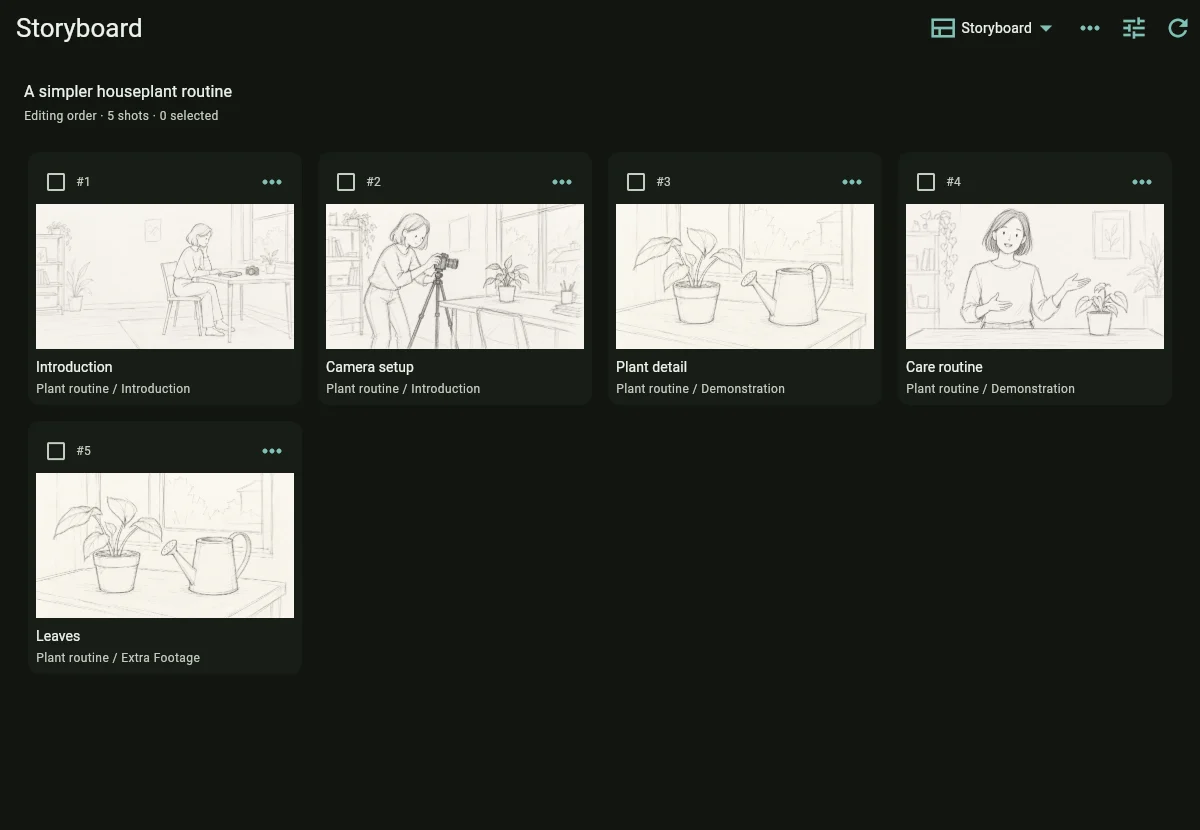
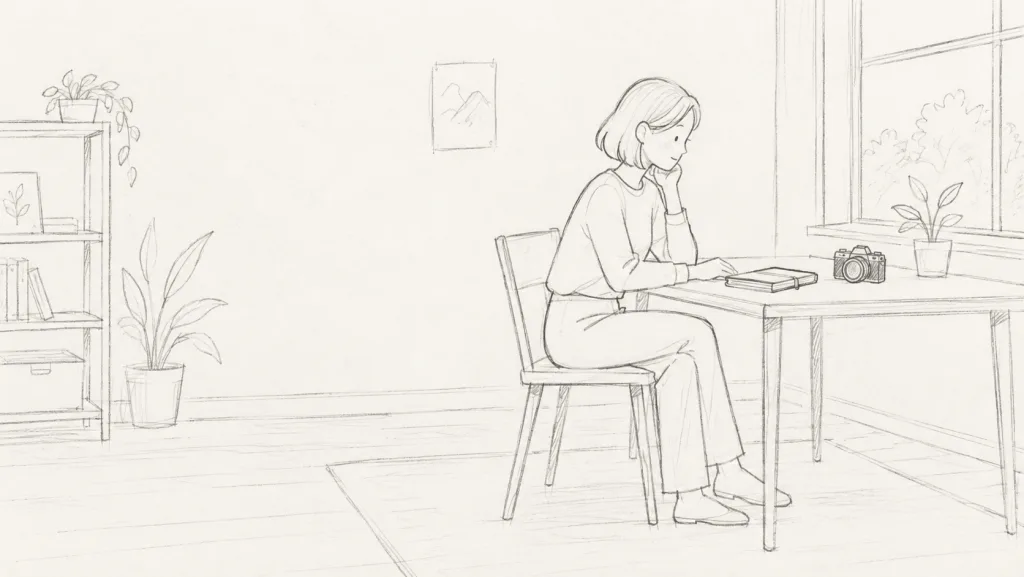
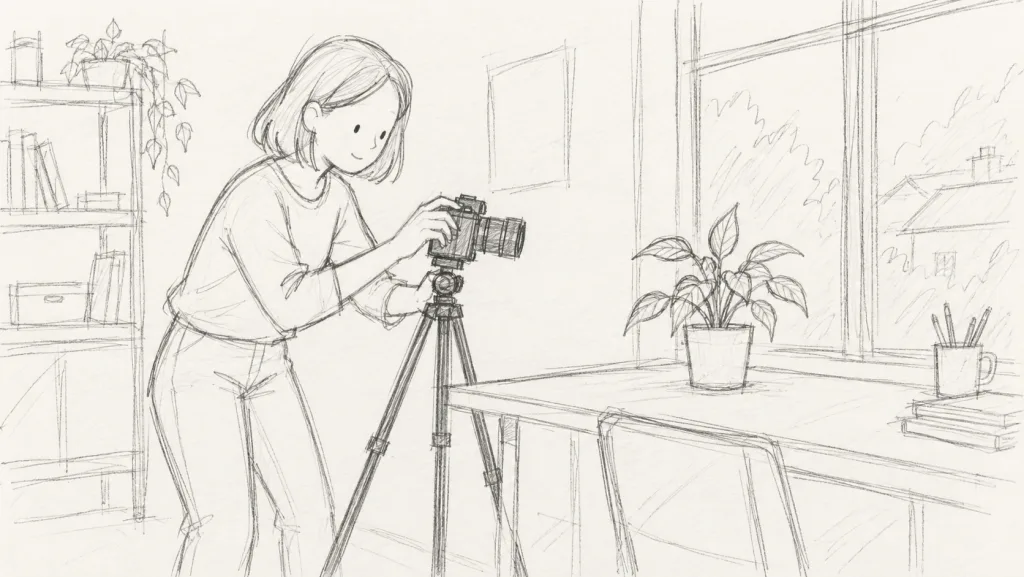
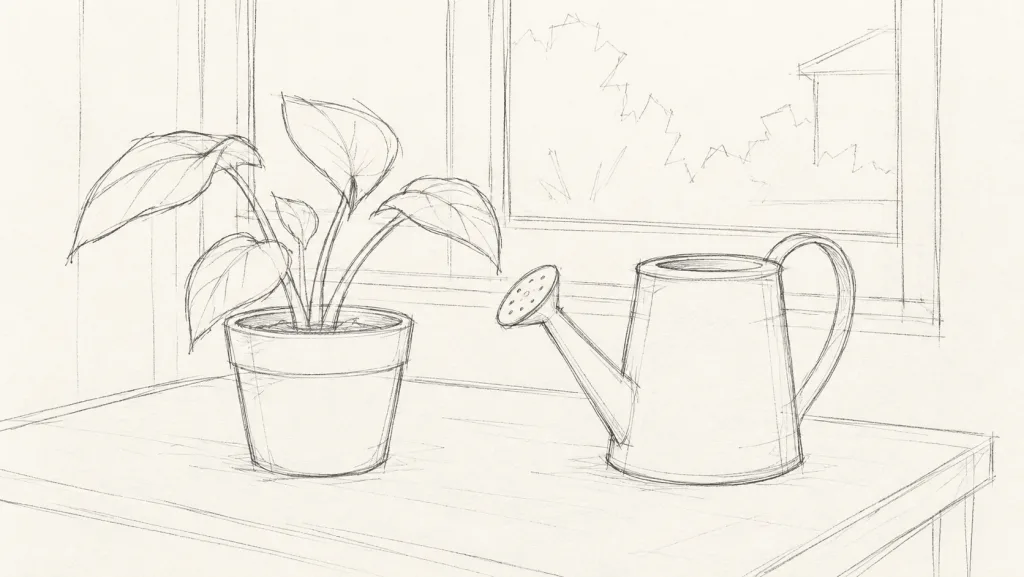
Our example follows a creator making a short houseplant-care video at home. The opening, demonstration, detail shots and extra footage all belong to the same project.
No account needed to look around. Choose a screen to see the real interface.
After signing in, choose Import Project JSON to review and import it. Sketch images are shown here and are not bundled in the planning JSON.
Follow one project from script to storyboard to shooting order.
Built around the way you work
The practical bits belong here, too.
↔
Use your own camera
Use a QR slate to associate external-camera footage with its shot and take. Android also supports capture through the phone’s camera app.
▤
Keep your preferred takes in sight
Mark a preferred take while filming. The organizer includes that choice in the filename, so it stays visible when you browse your footage.
⇣
Prepare for being offline
Enable offline access on your device and cache the storyboard images you need. AI generation needs a connection; local planning and take tracking can continue without one.
Made for creators working solo
Try it on your next real video.
Solo Director is in early access. If you make tutorials, reviews, vlogs or small documentary videos, we’d love to hear what helps, what gets in the way, and what’s missing.
Start small: plan one video, visualize a few shots, then use the plan while filming.
Early access · Free to try, with AI usage limits · Web + Android
Before you start
A few useful answers.
Is Solo Director free to try?
Yes, during early access. AI project generation, Helper turns and storyboard images have usage limits. The app shows your allowances and an estimate before image generation. Estimates describe provider usage; there is no in-app checkout.
Does it make or edit my finished video?
Solo Director helps you plan and film. Storyboard images are visual references, not generated video footage. You edit your captured material in your preferred video editor.
Do I have to use AI?
No. Create and edit a plan manually, import a compatible plan from another AI, and upload your own storyboard images. AI-generated plans and Helper edits remain reviewable.
Where do my videos and storyboard images go?
Recorded footage stays on your device; the media organizer does not upload it. Account plans and storyboard images are stored on the server. Relevant planning text is sent to the AI provider when you request AI work, and storyboard generation sends its visual brief and selected references.
Can I use it without an internet connection?
Enable offline access while online first, and explicitly cache the storyboard images you need. Supported local planning and take workflows can then continue offline. Sign-in, AI generation and uncached image downloads need a connection.
Which devices can I use?
Use the browser app for planning and the Android app for supported phone capture. Folder organization on the web requires desktop Chromium. Android installation is a direct APK download; there is no Play Store or native iOS listing linked here.
What happens to my files when I organize them?
On desktop Chrome or Edge, matched files are copied into the approved folder structure, verified, then removed from their original location. Android creates organized copies and keeps Gallery originals unchanged. Review matches and paths before confirming. Unmatched files stay untouched, and the app provides reviewed Undo for unchanged organized files.
How do I report a problem?
Email sasa@savicsoft.com with what you were trying to do, your device/browser and what happened. A screenshot is useful, but please remove private project information. Early access means features are still evolving.
 Solo Director